
User guide
Create an invoice
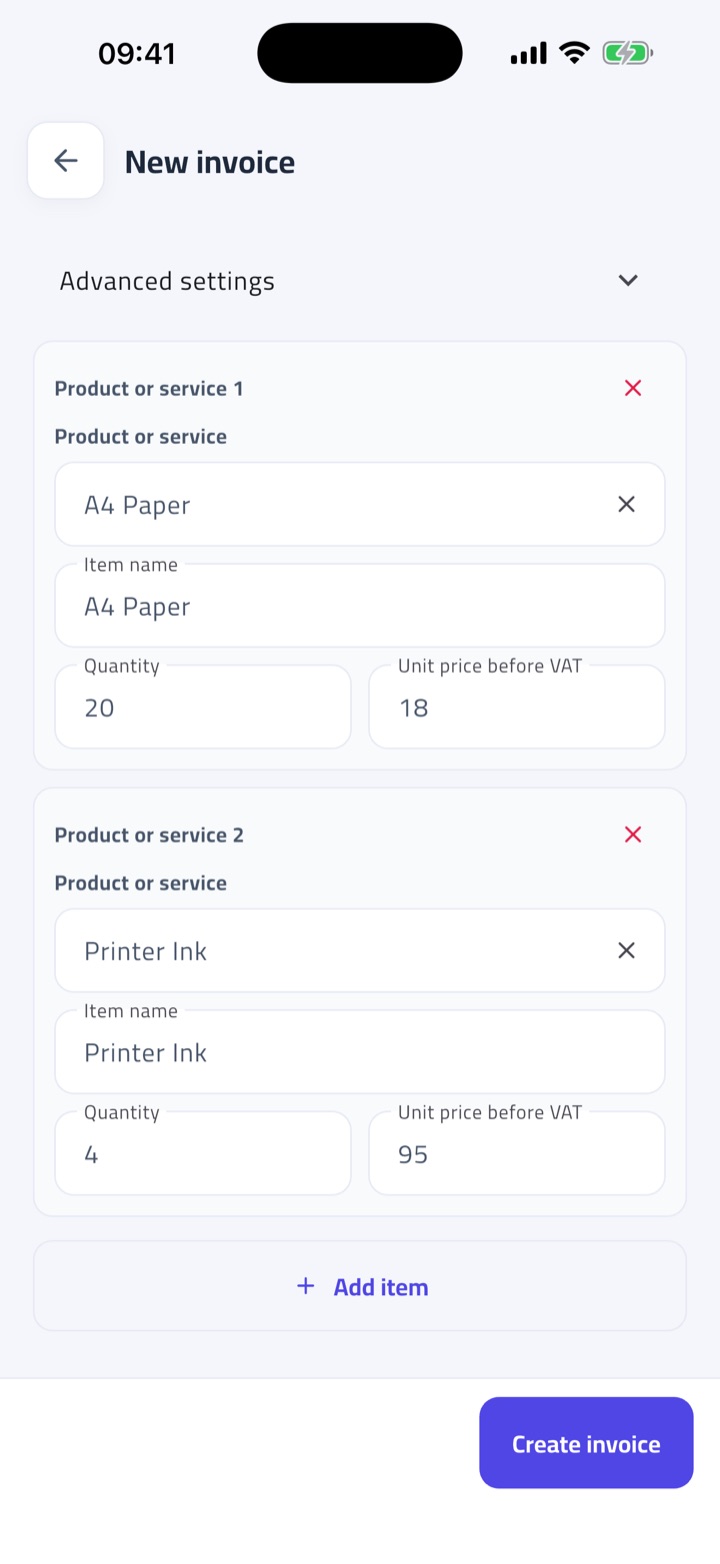
Every invoice starts from the Add button on the Dashboard, or on the Sales and Purchases screens. It offers three ways in, and all three end in the same place: a saved invoice with its totals recalculated on the server and its details checked against the UAE e-invoicing rules.
Add manually
- Pick the customer (for a sale) or the supplier (for a purchase). If they are not in your directory yet, add them right there — name, VAT status and TRN are enough to start.
- Add each line. Choose a saved product or service, or type a new one; set the quantity, unit price before VAT, and an optional discount. The VAT category and rate come from the product and can be changed per line.
- Set the issue date, due date and payment means. The document type follows your business profile: a tax invoice for a VAT-registered seller, a commercial invoice otherwise.
- Tap Confirm. The app recomputes every total, checks the invoice, and saves it.
If something the rules need is still missing — a buyer address, a TRN, a line detail — the form tells you which field, in plain words. Fix it and confirm again, or choose Review later to save the invoice now and finish it from Needs Review.
Add from a document
Photograph a paper invoice with the in-app scanner, pick images from your gallery, or upload a PDF. The app reads the seller, buyer, lines, totals and the invoice number printed on the document, then opens a review step where you confirm what it found before anything is saved. A supplier's invoice number is kept as the invoice number; a document without a readable number gets the next one in your sequence.
You can capture several documents at once — up to 20 pages or files in one go. When you pick more than one, the app uploads them, hands you the screen back, and finishes reading and saving in the background. A notification tells you how many were created, how many need your attention, and how many were skipped because their number already exists.
Add from a sheet
Import a CSV or XLSX file when you have many invoices in a spreadsheet. Download the template from inside the import dialog so the columns match, paste rows or pick files, and check the preview: every row is validated before anything is created, and rows with problems are named. Each distinct invoice number in the sheet becomes one invoice. A single invoice opens for review; several run as a batch, the same way scanned documents do.
Trying the app first
A demo account can create one sale end to end, with its customer and products, before you fill in your business details. Everything else opens the short form that turns the demo into your real business account.
Review and complete invoices
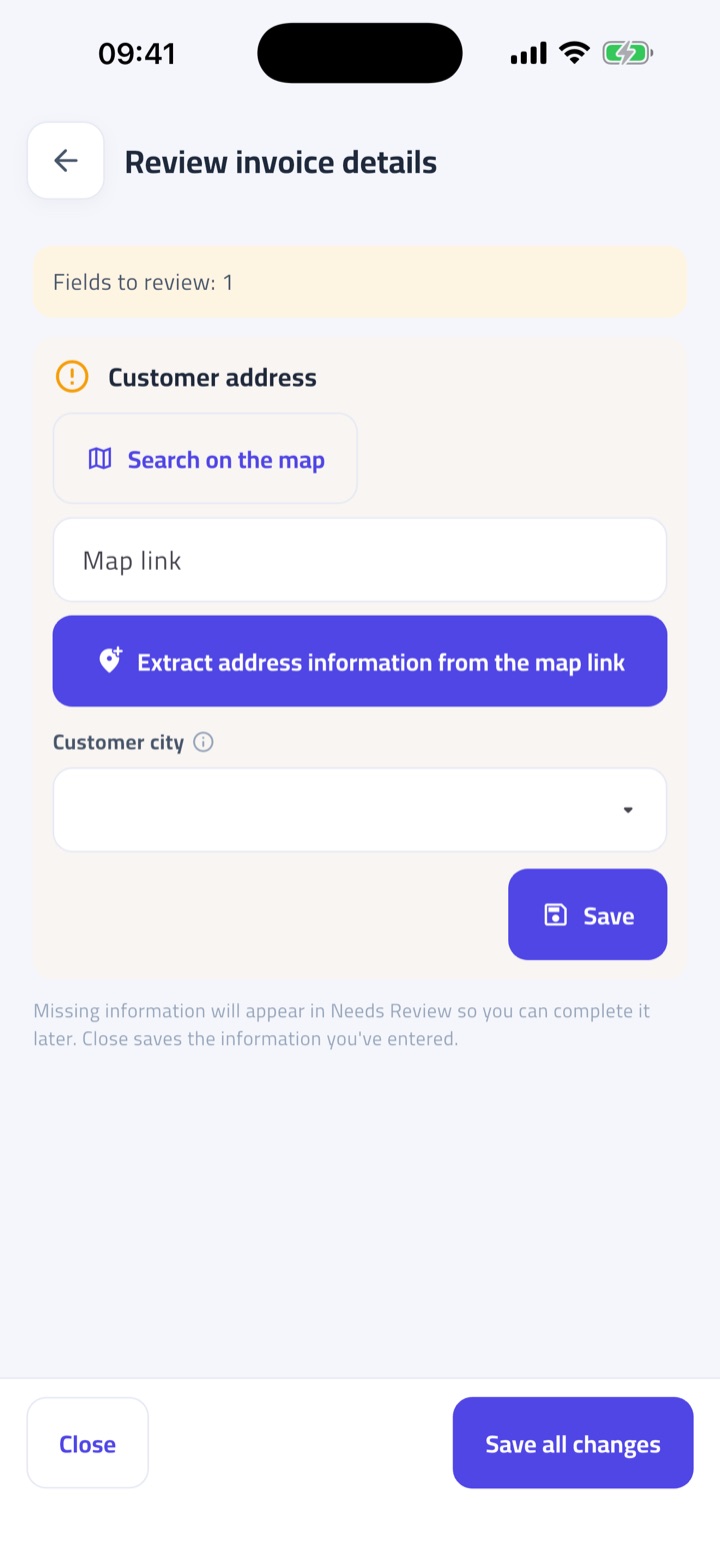
Not every invoice is finished the moment it is saved. Scanned documents can be misread, imported rows can be incomplete, and the e-invoicing rules ask for details that a paper invoice never carried. Anything that still needs a decision from you waits under Needs Review on the Dashboard.
What lands in Needs Review
- A scanned or imported invoice whose customer, supplier or product did not match anything in your directory.
- A line whose price differs from the saved product price.
- An invoice missing a detail the rules require — a buyer TRN, an address line, an emirate, a legal registration number.
- An invoice you saved with Review later.
Working through a review
- Tap the row. The review opens on the first thing that needs you and lists the rest below.
- For an unmatched party or product, either pick the existing record it should be, add it as new, or confirm the value the document showed.
- For a missing field, type the value. Fields that belong to your own business are labelled "Your business" and are saved to Business Information at the same time, so you fix them once.
- Tap Save all changes. The invoice is re-checked immediately and the row disappears when nothing is left.
Reading an invoice's status
Every invoice shows a compliance pill. Complete means every detail the rules ask for is present. Incomplete means something is still missing, and Review now takes you straight to it. A complete invoice can still show Awaiting business verification — the invoice is fine; the hold is on your business profile, and it lifts the moment verification is approved.
Only a complete, verified sale can be exported as e-invoice XML, emailed as a PDF without a draft watermark, or credited.
Customers and suppliers
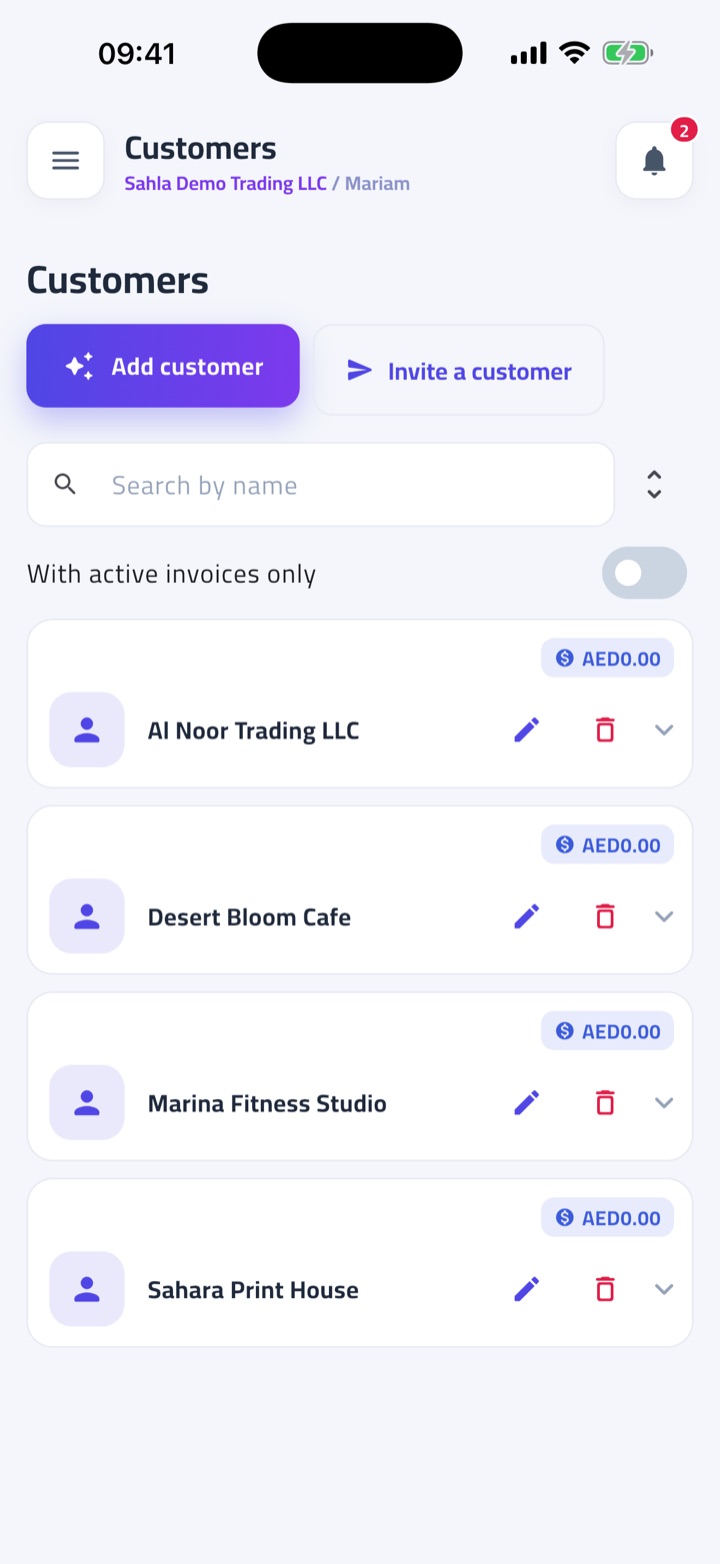
Customers are the businesses you sell to; suppliers are the ones you buy from. Each has its own directory, and each record holds what an invoice will need about that party: legal name, VAT status, TRN, an optional TIN, legal registration details, address and emirate, and contact numbers.
Adding a party
The Add button offers four sources:
- Add manually — type the details yourself. A TRN must be 15 digits; a TIN is 10 digits starting with 1. Mark the party VAT-registered only when you have its TRN.
- Add from a document — photograph a business card, letterhead or invoice and let the app pre-fill the form. Review the suggestions before saving.
- Add from a Fatura Sahla business code — if the other business also uses Fatura Sahla, ask for its six-character business code. Their verified details fill in exactly as they entered them.
- Add from a sheet — import many parties from CSV or XLSX. The template shows the expected columns.
Letting them fill it in
Rather than typing a customer's details, invite them. Invite a customer (or supplier) opens a QR code and link; whoever opens it fills in their own legal details, and a notification tells you when the record arrives. Each saved party also carries its own share action for sending an invitation to that specific business.
Keeping records useful
Every card offers a call, email and WhatsApp shortcut. A party that already appears on an invoice cannot be deleted, so your records stay consistent with the invoices that name them.
Products and services
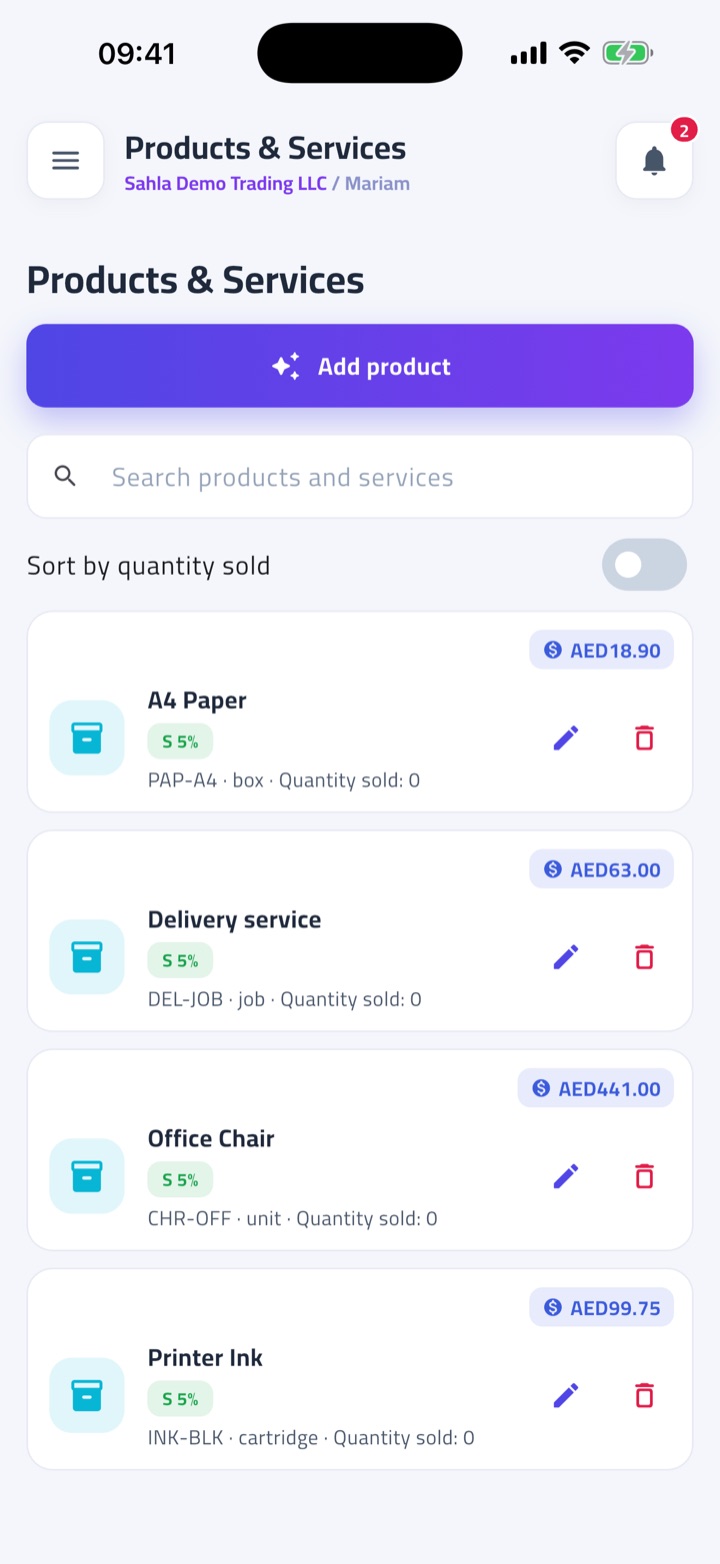
A product or service is a reusable invoice line: a name, an optional SKU, a unit of measure, a unit price before VAT, and a VAT category and rate. Saving them once means manual invoices are consistent and scanned documents have something to match against.
VAT on a line
Most items are standard-rated at 5%. Choose zero-rated for exports and the other zero-rated supplies, and exempt for the supplies the law exempts — the app asks for the exemption reason it will need on the invoice. A seller that is not VAT-registered issues commercial invoices; its lines carry no VAT at all.
How products meet documents
When a scanned or WhatsApp invoice names a line, the app looks for a matching product. A match with a different price is flagged so you can confirm the document's price for this invoice or correct the catalogue. A line with no match can be added as a new product from the review, so the next document matches without asking.
Importing a catalogue
Use Add from a sheet with the template. Name and unit price are required; VAT category and rate are checked before anything is saved, and rows with problems stay in the preview for correction.
Credit notes
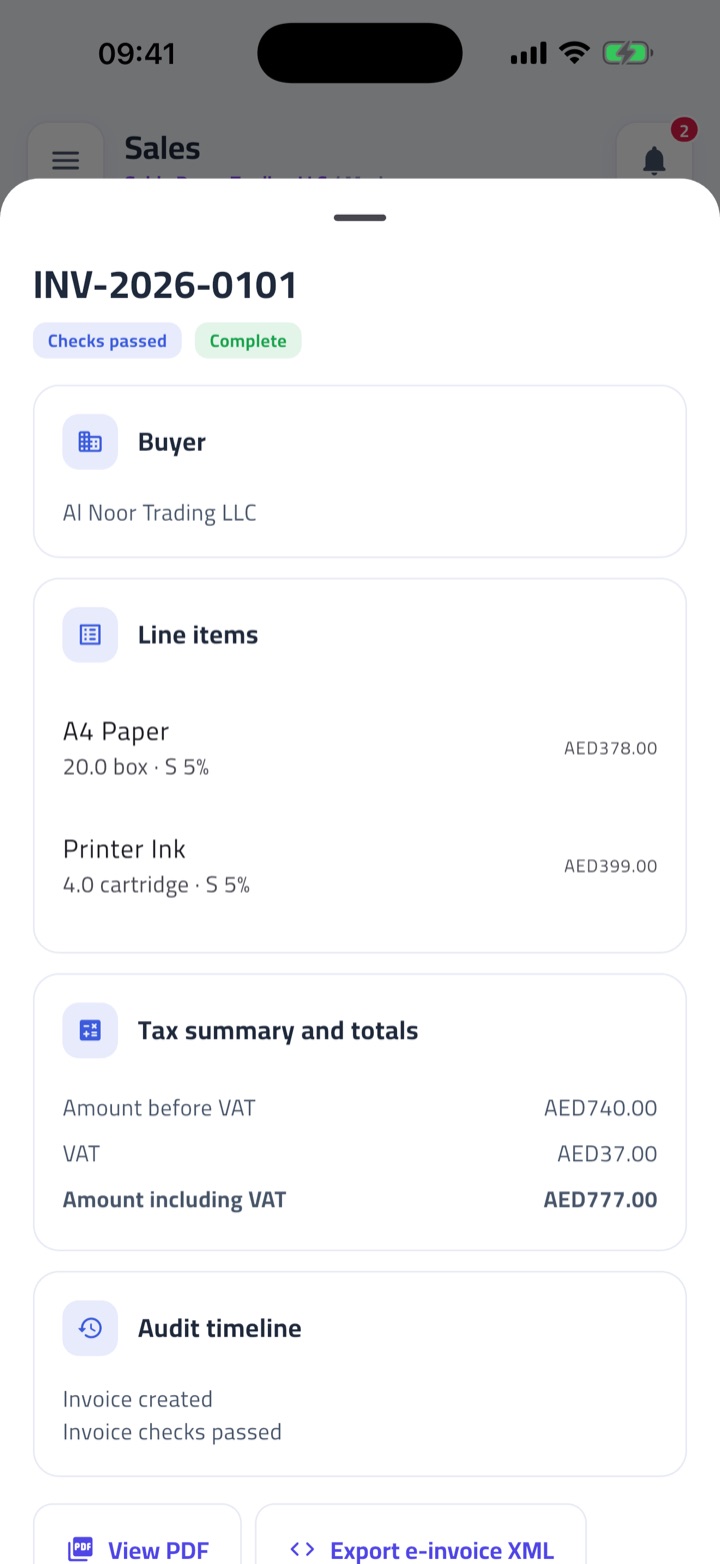
A credit note reverses or reduces a sale you have already issued. It is the correct way to handle a return, an over-charge or a cancelled order — the original invoice stays as issued, and the credit note records the adjustment against it.
Issuing one
- Open the sale under Sales and tap Issue credit note.
- Choose Full credit to reverse everything still outstanding, or Partial credit to pick lines and quantities.
- Give the reason. Some reasons are specific and some are general; a general reason is fine for your records, but exporting the credit note as XML needs a specific one.
- Confirm. VAT is recalculated on the server from the credited lines, so the note can never credit more VAT than the invoice charged.
A credit note cannot exceed what remains on the invoice, and each one appears on the invoice's detail with its own PDF and XML export. Credit notes are available once your business is verified.
Business information
This screen is where your own side of every invoice lives. It is available to the business owner and is split into four sections, each with its own Save.
- Legal — legal name, VAT status and TRN, TIN, and legal registration (trade licence number, type and issuing authority). A valid 15-digit TRN marks you VAT-registered automatically.
- Bank — payment means and the account you want on invoices. UAE IBANs are checked for shape and checksum before saving.
- Address — street lines, emirate, city and country. On a phone you can paste a map link and the app proposes the address.
- Invoice appearance — the language your invoices are printed in (English or Arabic, independent of the app language), colour theme, logo, signature, and a footer note.
Your business code
At the top of the screen is a six-character business code. Share it with customers and suppliers who also use Fatura Sahla: they add you to their directory with your verified details, and you are told when they do.
Getting verified
Until an operator has verified your business, every outbound PDF carries a DRAFT watermark, and Email PDF, XML export and credit notes stay off. To verify, first confirm your account email in Settings, then tap Upload trade licence document. The licence is read automatically and a review page opens with the details pre-filled; check them, confirm the representative declaration, and submit. You will see the status change on this screen, and the operator's message if anything else is needed.
WhatsApp invoicing
You can create invoices without opening the app, by sending them to Fatura Sahla's business WhatsApp number. It works for a photo or PDF of an invoice, and for an invoice typed as a short message.
Verify your number first
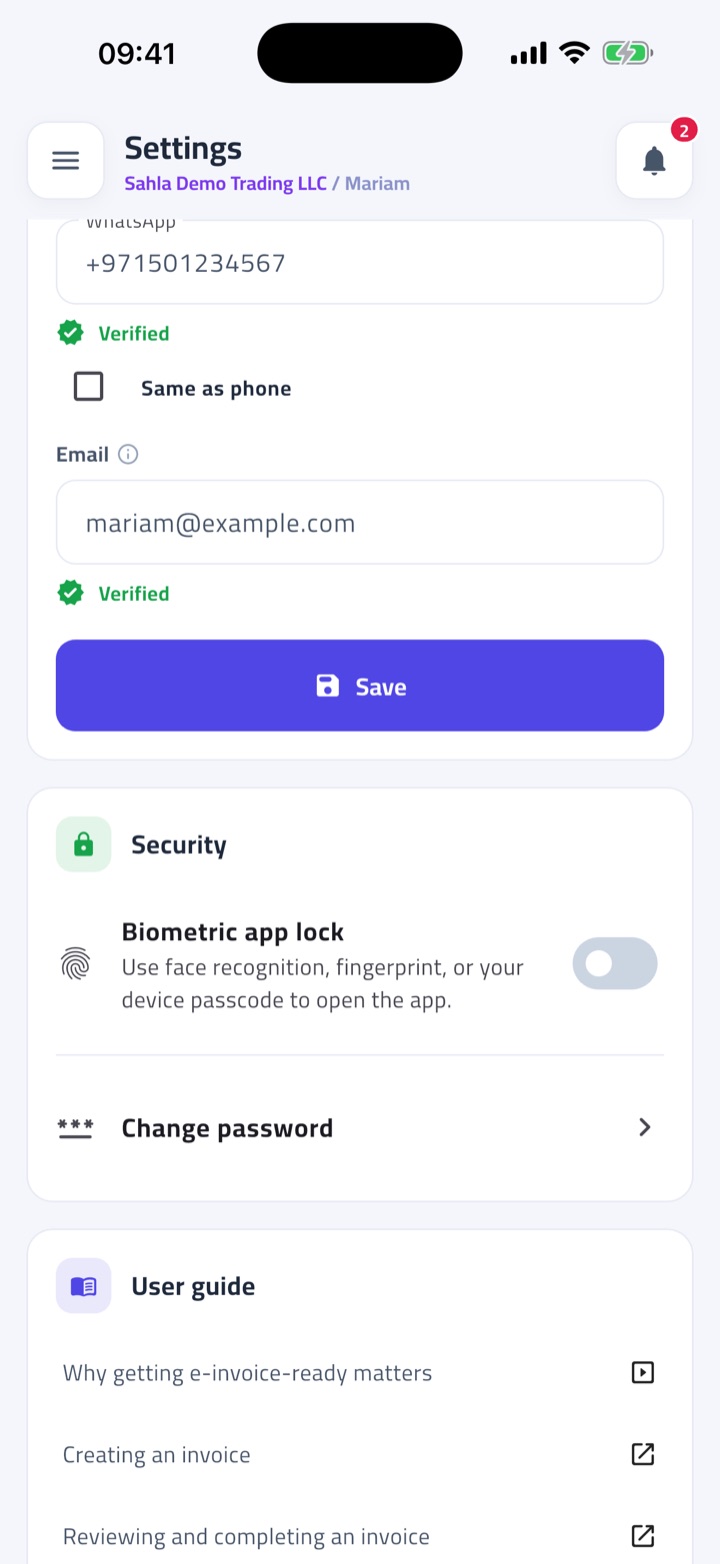
In Settings, enter your WhatsApp number and tap Verify on WhatsApp. It opens a chat with a prefilled message; send it, and the number is verified. Only messages from a verified number are accepted, so nobody can create invoices in your name from an unknown phone.
Sending a document
Send the photo or PDF. The app reads it and replies with a numbered list of what it found — seller, buyer, each line, totals — with a mark next to anything it could not match, such as a buyer not in your directory or a price that differs from your catalogue. Reply with the number and the correction, for example 2 ACME LLC to change item 2; reply ADD BUYER to save an unknown buyer; reply OK when the list is right. The invoice is created and its PDF is sent back to you.
Typing an invoice
Reply create invoice and the app sends a template: a BUYER line, one ITEM line per product using x for quantity and @ for the unit price before VAT, an optional DISCOUNT line, and END. Fill it in and send. From there it is the same numbered list and the same OK.
Replies come in the language you chose in Settings. If a document's invoice number is already in your account, the app tells you and creates nothing, so a forwarded invoice is never saved twice.
Settings
Settings is about you, the signed-in person. Your business's details live in Business Information.
Profile
Your name, phone, WhatsApp number, account email and avatar. The email is used for password recovery and business verification, so verify it — the screen shows whether it is verified and lets you resend the link. The WhatsApp number shows its own verification state; see WhatsApp invoicing.
Language
English, Arabic, Urdu or Hindi. This changes the app and the WhatsApp replies; the language your invoices are printed in is set separately in Business Information.
Security
Biometric app lock asks for face recognition, fingerprint or your device passcode whenever the app opens or comes back to the front. Change password needs your current password; if you have forgotten it and your email is verified, the same dialog offers recovery by email, which signs you out everywhere else.
Users
The owner can add staff and viewer users from User Management, each with their own login and password. Only the owner sees Business Information and User Management, and only the owner can delete the business.
Delete your account or business
Open Settings and scroll to the Danger zone at the bottom. You will be asked for your current password.
What is deleted depends on who you are. A staff or viewer user sees Delete my account: only your own login goes, and you are signed out on every device. The business owner sees Delete this business: the whole business is removed — every invoice, credit note, customer, supplier, product, uploaded document and user account with it.
Deletion is immediate and cannot be undone. Export any invoices or PDFs you still need before you confirm.